M.2 SSD Dual-Head Type-C Cables: Faster External Storage Made Simple
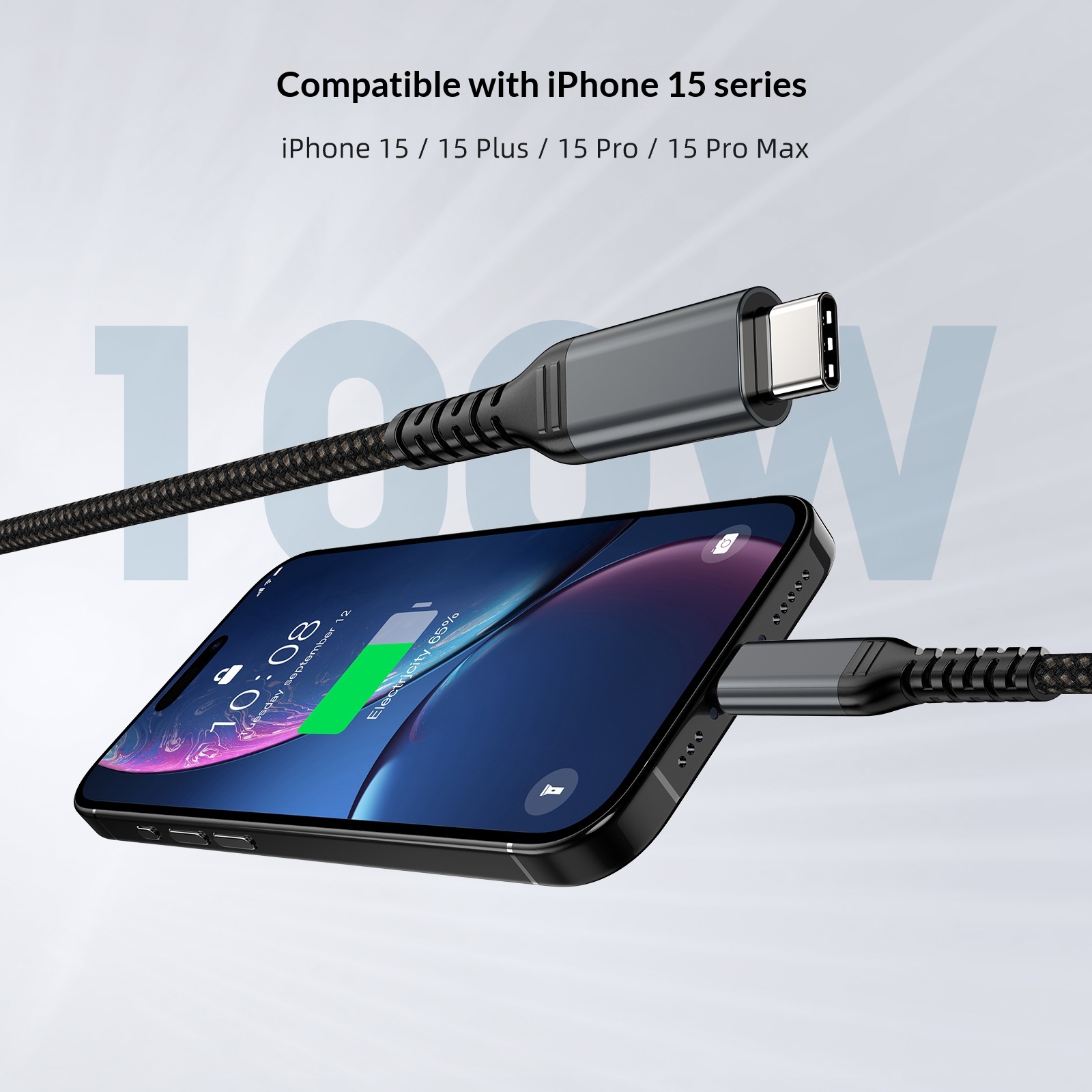 M2 Ssd Dual-head Type-c Data Cable$6.99Shop →
If you've turned an M.2 SSD into portable storage, the cable you connect it with deserves more attention than it usually gets. A dual-head Type-C data cable is purpose-built for this job, and using the right one keeps your fast drive feeling fast.
What 'dual-head' means here
The cable has a USB-C connector on each end, so it can link a USB-C SSD enclosure to a USB-C port on a laptop, tablet, or phone. The 'dual-head' design simply refers to having two USB-C connectors, giving you a clean, modern connection on both sides without adapters dangling in between.
Why a dedicated data cable matters
Not all USB-C cables are equal. Some are built mainly for charging and move data slowly, if at all. An M.2 SSD can read and write quickly, but it can only go as fast as the cable allows. A cable intended for storage is constructed to carry higher data throughput, so transfers of large files don't drag.
Choosing the right cable
- Prioritize a data-rated cable. Look for a cable explicitly intended for high-speed data, not a charge-only cord. The wrong one is the most common reason a quick drive transfers slowly.
- Check both your ports. Make sure your computer and your SSD enclosure both use USB-C. If your laptop only has older ports, you may need a different connector or an adapter.
- Mind the length. Shorter cables are generally better suited to maintaining high-speed signals. A compact cable also travels well in a bag with the drive.
- Build quality counts. Firm connector housings and a durable jacket help a cable that gets plugged and unplugged often.
How people use it
This setup is popular for moving big files between machines, backing up photos and footage on the go, offloading footage from a long shoot, and carrying a working library of projects without lugging a bulky drive. Creators, students, and anyone juggling large files appreciate having quick storage in a pocket.
Setup and care tips
Plug the SSD enclosure into the cable, connect the other end to your device, and your operating system should recognize the drive shortly after. Always eject or safely remove the drive before unplugging to avoid interrupting a write and risking your files.
To keep transfers consistent, connect directly to your device rather than through a long chain of hubs when you need top speed. Keep the connectors free of pocket lint, pull from the plug rather than the cord, and store the cable loosely coiled. If a transfer seems slow, confirm you're using a data-capable cable and a USB-C port on your computer that supports faster speeds, since ports on the same machine can differ.
FAQ
- Why is my SSD transferring files slowly?
- The most frequent culprit is a charge-only or low-speed cable. Make sure you're using a data-rated USB-C cable and that the computer port you're plugged into supports high-speed transfers, as not all ports on a device are the same.
- Can I use this cable to charge devices too?
- USB-C cables can often carry power as well as data, but this cable is intended for connecting storage. For its main job, focus on whether it's rated for the data speeds your drive can reach.
- Do I need to eject the drive before unplugging?
- Yes. Safely ejecting or removing the drive first ensures any in-progress writes finish, which protects your files from corruption.